
Warning: session_start(): open(/var/cpanel/php/sessions/ea-php74/sess_8ed1a2111d26cd79047535deccc6fc01, O_RDWR) failed: No such file or directory (2) in /home/alivedir/staginglabellinenz.alivedirectory.com.au/nz22/system/library/session.php on line 38

Warning: session_start(): Failed to read session data: files (path: /var/cpanel/php/sessions/ea-php74) in /home/alivedir/staginglabellinenz.alivedirectory.com.au/nz22/system/library/session.php on line 38

Warning: Cannot modify header information - headers already sent by (output started at /home/alivedir/staginglabellinenz.alivedirectory.com.au/nz22/system/library/session.php:38) in /home/alivedir/staginglabellinenz.alivedirectory.com.au/nz22/catalog/controller/startup/startup.php on line 71

Warning: Cannot modify header information - headers already sent by (output started at /home/alivedir/staginglabellinenz.alivedirectory.com.au/nz22/system/library/session.php:38) in /home/alivedir/staginglabellinenz.alivedirectory.com.au/nz22/catalog/controller/startup/startup.php on line 131
How to setup up a label mail merge in Microsoft Word

How to setup up a label mail merge in Microsoft Word

Step 1:

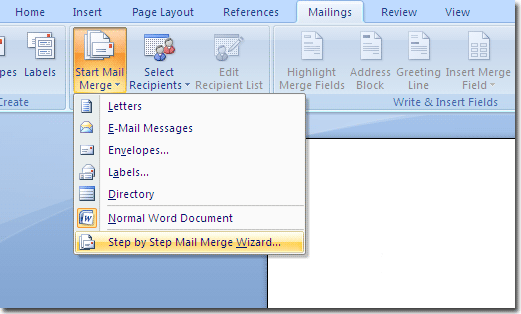
Open Microsoft Word then click on the "Mailings" tab. Select "Start Mail Merge" then "Step by Step Mail Merge Wizard".
Step 2:

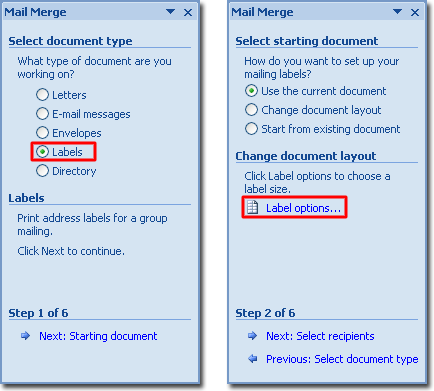
The following box will appear on the right hand side of your screen. Select "Labels" then click "Next: Starting Document".
Step 3:

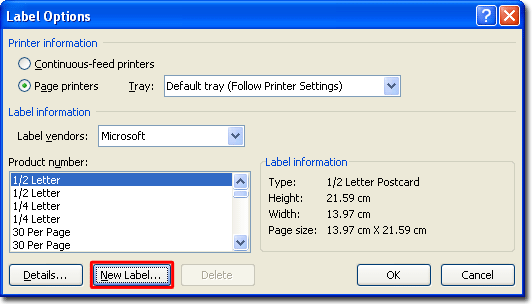
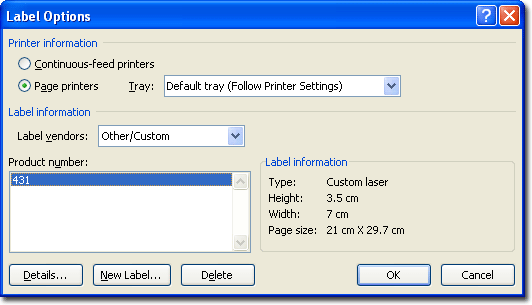
Click "Label Options" and the following dialog box will appear. You will need to add the label shape you have to the list, so click "New Label". (For this example we will be using 431)
Step 4:

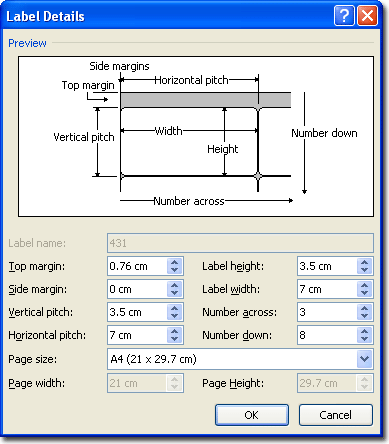
Fill in the label properties. These can be found on each product's page on this website. Be careful to pay attention to the difference between millimetres and centimetres.
Step 5:

Now this label shape will be available under the "Other/Custom" Label vendor.
Step 6:

Follow the rest of the steps in the wizard to add text to your labels.